RDP port 3389: how to change it and lock down your RDP
Published 29 Oct 2026
The RDP port is TCP and UDP 3389. How to change it on Windows, why that only cuts bot noise, and the settings that actually secure a rented RDP.
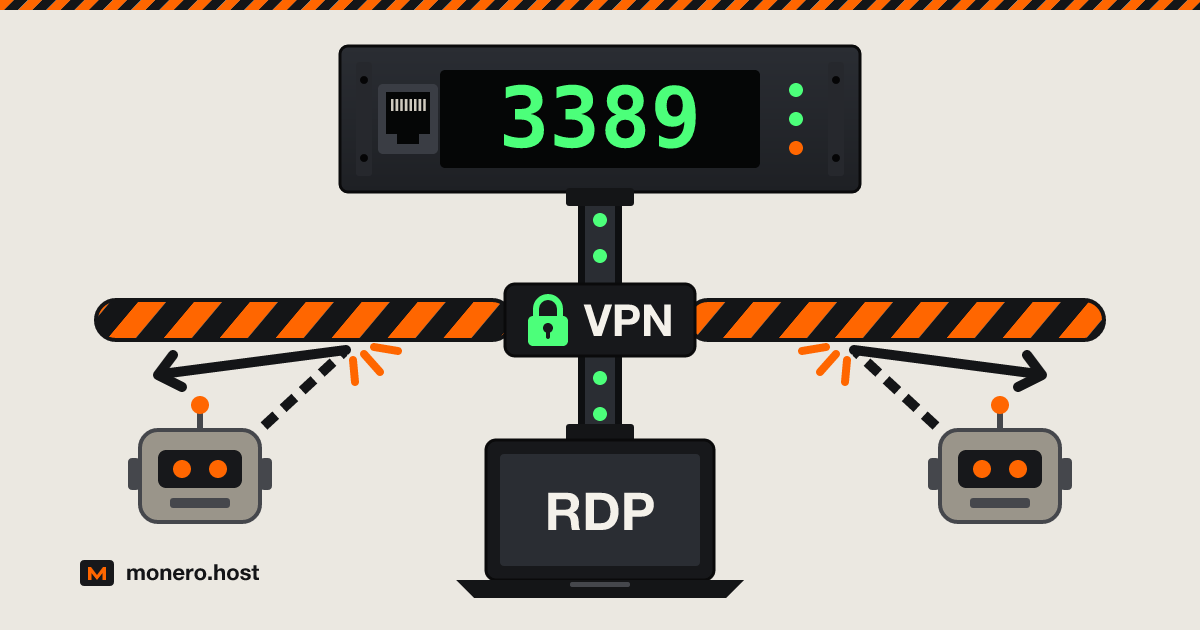
The default RDP port is 3389, on both TCP and UDP. An RD Gateway moves the public side to TCP 443 and UDP 3391, but a Windows RDP rented from a hosting provider rarely has one: you connect straight to port 3389 on its public IP. Below: how to change the RDP port, why that only quiets the bots, and the ten minutes of settings that actually protect the server.
Checked on 1 October 2026.
What port RDP uses: TCP and UDP 3389, and 443 for RD Gateway
Microsoft's list of Remote Desktop Services ports:
| Port | Protocol | Used by |
|---|---|---|
| 3389 | TCP | The Remote Desktop connection (default) |
| 3389 | UDP | The UDP transport of the same connection |
| 443 | TCP | RD Gateway (RDP inside HTTPS) and RD Web Access |
| 3391 | UDP | RD Gateway's UDP transport |
IANA registers 3389 for both TCP and UDP as ms-wbt-server. To check the RDP port number your server listens on, run this in an administrator PowerShell:
Get-ItemProperty -Path 'HKLM:\SYSTEM\CurrentControlSet\Control\Terminal Server\WinStations\RDP-Tcp' -Name PortNumber
Changing the RDP port cuts noise, not risk
Moving it is fine, but it is not a security measure. Automated password guessers aim at 3389 because it is the default, so a server on that port logs a steady stream of failed logons. Move it and most of that noise goes, so real attempts stand out.
It does not hide the server: a scan of all 65,535 ports finds the new one quickly. Change it for quieter logs, then do the lockdown below anyway.
How to change the RDP port on Windows
Microsoft's procedure is one registry value plus a firewall rule. Open the firewall first, or the restart locks you out. Pick an unused port below 49152: Windows keeps 49152 to 65535 for its own outgoing connections.
$port = 47213

# 1. Open the new port first, TCP and UDP
New-NetFirewallRule -DisplayName "RDP custom TCP" -Direction Inbound -Protocol TCP -LocalPort $port -Action Allow
New-NetFirewallRule -DisplayName "RDP custom UDP" -Direction Inbound -Protocol UDP -LocalPort $port -Action Allow

# 2. Point Remote Desktop at it
Set-ItemProperty -Path 'HKLM:\SYSTEM\CurrentControlSet\Control\Terminal Server\WinStations\RDP-Tcp' -Name PortNumber -Value $port

# 3. Restart to apply
Restart-Computer
If your provider runs a firewall in its control panel, open the port there too. Connect with the port after the address, for example 203.0.113.10:47213, and once that works, close the old rules with Disable-NetFirewallRule -DisplayGroup "Remote Desktop". Prefer Registry Editor? Edit PortNumber under the same RDP-Tcp key, in Decimal, and restart.
The risk of exposing RDP to the internet
Exposed RDP is a well-worn way in. CISA's #StopRansomware Guide says attackers often get in through exposed, poorly secured remote services and advises against exposing RDP to the web at all. Where RDP is needed, it asks for unused RDP ports closed, account lockouts, multifactor authentication and logged login attempts. In KB5020282 (2022), Microsoft counts brute force among the top three ways Windows machines are attacked, and notes that until its October 2022 updates the built-in Administrator could not be locked out, so it could be guessed over RDP without limit.
Bugs in Remote Desktop Services add to that. BlueKeep (CVE-2019-0708), patched in May 2019, let an attacker run code before logging in on Windows XP, 7 and Server 2003 to 2008 R2. Microsoft noted that Network Level Authentication only partly mitigated it: it stopped worms, not an attacker holding valid credentials.
Exposed RDP with NLA, a lockout, a long passphrase and current patches is defensible. RDP that answers only you is better.
Lock down a rented RDP in ten minutes
Keep Network Level Authentication on
With RDP network level authentication, the client must authenticate before Windows creates a session, which keeps pre-login bugs like BlueKeep away from anyone without the password. Check it, and switch it on if needed:
$ts = Get-CimInstance -Namespace root\cimv2\TerminalServices -ClassName Win32_TSGeneralSetting -Filter "TerminalName='RDP-Tcp'"
$ts.UserAuthenticationRequired   # 1 means NLA is on
Invoke-CimMethod -InputObject $ts -MethodName SetUserAuthenticationRequired -Arguments @{UserAuthenticationRequired = 1}
Check the account lockout policy (it may be off)
Microsoft's policy reference gives 0, never lock, as the stand-alone server default, and exempts the built-in Administrator. KB5020282 changed that only for Windows 11 22H2 and for new machines that had the October 2022 updates before their first setup: 10 failed attempts within 10 minutes lock the account for 10 minutes, Administrator included. A machine updated after setup keeps the old defaults. Check your provider's image with net accounts. If "Lockout threshold" says Never:
net accounts /lockoutthreshold:10 /lockoutduration:10 /lockoutwindow:10
Then enable Allow Administrator account lockout in secpol.msc, under Account Policies > Account Lockout Policy. Lockout only blocks network logons such as RDP; the console still works.
Rename the administrator account and use a long passphrase
Password guessers try Administrator first, and a renamed account also stops strangers from locking you out with your own username:
Rename-LocalUser -Name "Administrator" -NewName "pick-something-unguessable"
If your provider's panel can reset the password, check that it still finds the renamed account. Your provider generated the first password and likely emailed it, so replace it on first login (Ctrl+Alt+End in the session, then Change a password). CISA's guide asks for default admin usernames and passwords to be changed, and for unique passwords of at least 15 characters; use at least that here.
Allow only your IP, or tunnel through WireGuard or SSH
The best RDP security is a port that answers only you. With a fixed address, restrict the built-in rules, or your custom ones if you moved the port:
Set-NetFirewallRule -DisplayGroup "Remote Desktop" -RemoteAddress 198.51.100.7
# after a port change:
Set-NetFirewallRule -DisplayName "RDP custom TCP","RDP custom UDP" -RemoteAddress 198.51.100.7
Home addresses change, and a VPN does not fix that. Mullvad and IVPN both take Monero and keep your home IP out of the provider's logs, but everyone on a VPN server shares its exit address, which makes a poor allowlist. Two ways to get an address of your own:
- WireGuard on a small Linux VPS. Run your own WireGuard server on a cheap machine from the VPS bay, then allow RDP only from its IP.
- An SSH tunnel. OpenSSH Server is an optional feature from Windows Server 2019 and comes installed on Windows Server 2025; start the
sshdservice and set it to Automatic. Put your public key inC:\ProgramData\ssh\administrators_authorized_keys, readable only by Administrators and SYSTEM as Microsoft's key guide shows, setPasswordAuthentication noinC:\ProgramData\ssh\sshd_configand restartsshd. Open the tunnel (swap 3389 for your custom port if you moved it):
ssh -N -L 13389:127.0.0.1:3389 [email protected]
Point Remote Desktop at 127.0.0.1:13389, and once that works, disable the Remote Desktop firewall rules. RDP is off the internet; port 22 is on it and takes only keys.
Turn off clipboard and drive redirection you do not need
A compromised server can reach whatever clipboard and disks you redirect to it. In Remote Desktop Connection, open Show Options > Local Resources, untick Clipboard, and under More, untick Drives. To enforce it on the server, enable Do not allow Clipboard redirection and Do not allow drive redirection in gpedit.msc, under Administrative Templates > Windows Components > Remote Desktop Services > Remote Desktop Session Host > Device and Resource Redirection.
Patch, then read the failed logon events
Run Windows Update and leave automatic updates on. Check the version: the paid Extended Security Updates for Windows Server 2012 and 2012 R2 ended in October 2026 (Microsoft lifecycle), and Windows 10 reached end of support on 14 October 2025. Ask for Server 2022 or 2025, or Windows 11.
A failed logon is event 4625; a successful Remote Desktop sign-in is 4624 with logon type 10, RemoteInteractive. This lists the ten addresses that failed most:
Get-WinEvent -FilterHashtable @{LogName='Security'; Id=4625} -MaxEvents 2000 |
  ForEach-Object { (([xml]$_.ToXml()).Event.EventData.Data | Where-Object Name -eq 'IpAddress').'#text' } |
  Group-Object | Sort-Object Count -Descending | Select-Object -First 10 Count, Name
Empty? auditpol /set /subcategory:"Logon" /failure:enable turns failure auditing on. Failures from strangers are the background noise of an open port. A 4624 type 10 from an address you do not know is an incident.
What your hosting provider can and cannot see
The provider runs the hypervisor under your server:
- It can open the console, reset the password, snapshot the disk and read anything you did not encrypt.
- It sees the address you connect from (the VPN's, if you use one), when, and how much data moves.
- It cannot read the RDP session on the wire, which is encrypted. With the hypervisor, it rarely needs to.
- It knows what the order form and your payment reveal. With Monero and a no-KYC signup, that is an email or a username.
Keep nothing on a rented Windows box that you would not hand to the company running it.
What to look for in an RDP provider
- A console in the control panel, for the day a firewall rule or lockout goes wrong. Ask before ordering.
- A current Windows image: Server 2022 or 2025, or Windows 11. Pick it at checkout even when older ones are offered.
- DDoS protection and full administrator rights, both included.
- Monero at checkout, and a signup that asks for an email or a username, never an ID.
Two units in our RDP bay sell Windows RDP for Monero, listed alphabetically:
| MurmurHost | rdp.monster | |
|---|---|---|
| Cheapest RDP | $44 month to month, or $224.40 a year | $8.99 a month |
| Windows | Server 2019 and 2022, Windows 10 and 11 | Server 2012 and 2022 |
| Monero | Paid to its own wallet, released after 10 confirmations | Listed among its payment methods |
| Signup | No name, phone or ID | Email only, no KYC |
| Included | Full admin, 10 Gbps DDoS protection | Full admin, anti-DDoS, all ports open but 25 (a $5 a month option) |
For VPS, domains and mail too, see the hosting providers that accept Monero.
FAQ
Is 3389 the RDP port?
Yes. Remote Desktop listens on 3389 by default, registered with IANA on TCP and UDP. An administrator can move it with one registry value.
Is Remote Desktop port 3389 TCP or UDP?
Both. TCP carries the connection and must be open; UDP on the same port is an extra transport the client uses when it can. When you move the port, open both.
Does RDP use port 443?
Through an RD Gateway, yes: it wraps RDP in HTTPS on TCP 443 and adds UDP 3391. A plain rented RDP has no gateway and uses 3389.
Is RDP port 22?
No, port 22 is SSH. You can carry RDP through an SSH tunnel on port 22, but RDP itself still listens on 3389.
Is RDP 3389 secure?
The port number changes nothing. RDP encrypts the session; safety comes from NLA, patches, a lockout, a strong password and how few addresses can reach it.
Is it safe to expose RDP to the internet?
It is the riskiest setup: anyone can try passwords and any unpatched bug is reachable. If you must, keep NLA on, set a lockout, use a long passphrase and patch; better, allow only your address or a tunnel.
The short version
Port 3389, TCP and UDP. Change it for quieter logs, not for safety. Then NLA on, a lockout that covers Administrator, a renamed account with a long passphrase, the port closed to everyone but you, redirection off, patches on, and a weekly look at event 4625. Ten minutes per server.